Here is how you can make a backup of the data in your cPanel account from within your account.
We recommend everyone keeps regular backups offsite. This way if something goes wrong, you'll have something to help you get your site running again.
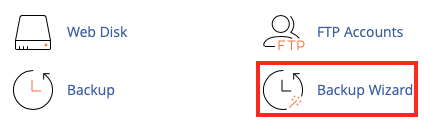
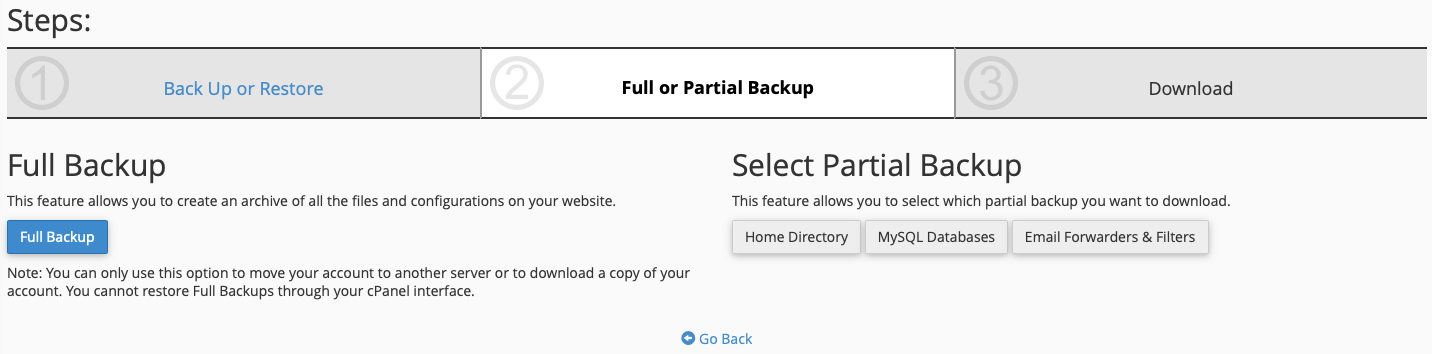
Choose a full backup if you want to make sure you have 100% of your account data backed up. If you decide to make a full backup, go to step 5.
Be aware that you cannot restore a full backup from your cPanel account. Only the server owner can restore full backups. However, if you want to keep a copy of your account offline (which we do recommend to protect against your site getting hacked) you should use a full backup as well as a partial backup (if you also want to be able to restore data yourself in cPanel).
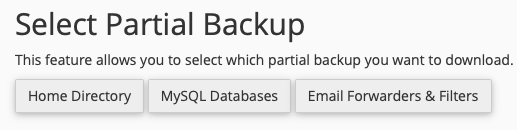
Choose a partial backup if you want to be able to restore the backed-up data using your cPanel account. If you decide to make a partial backup, go to step 6.
Partial backups back up most of your data, but there are some features that aren't backed up like Mailman mailing lists or PostgreSQL databases (if you have any).
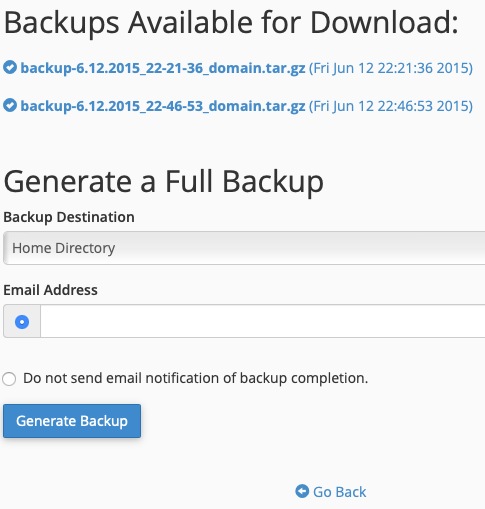
Home Directory is the default option. This creates a backup into your home directory on the current server.
Make sure you have enough disk space in your hosting account if you plan to back up locally. Due to the way backups are made, you may need 75-125% more disk space than the current total size of your hosting account temporarily. The final backup will be compressed and the interim files will be deleted, so it probably won't take up as much space as your account does normally.
Alternate Backup Option
If you find the backup wizard to be needlessly busy and you want to quickly manage your backups, you can use the standard Backup feature in the Files section of cPanel. This combines full and partial backups and restores them into a single screen.
